Introduction
DroidVM is a virtual machine manager that runs on Android devices, with support for multiple hypervisors. It lets you create and manage lightweight virtual machines directly on your phone and enjoy near-native performance.
Supported hypervisors:
- Qualcomm Gunyah (
/dev/gunyah) - MediaTek GenieZone (
/dev/gzvm) - Linux KVM (
/dev/kvm)
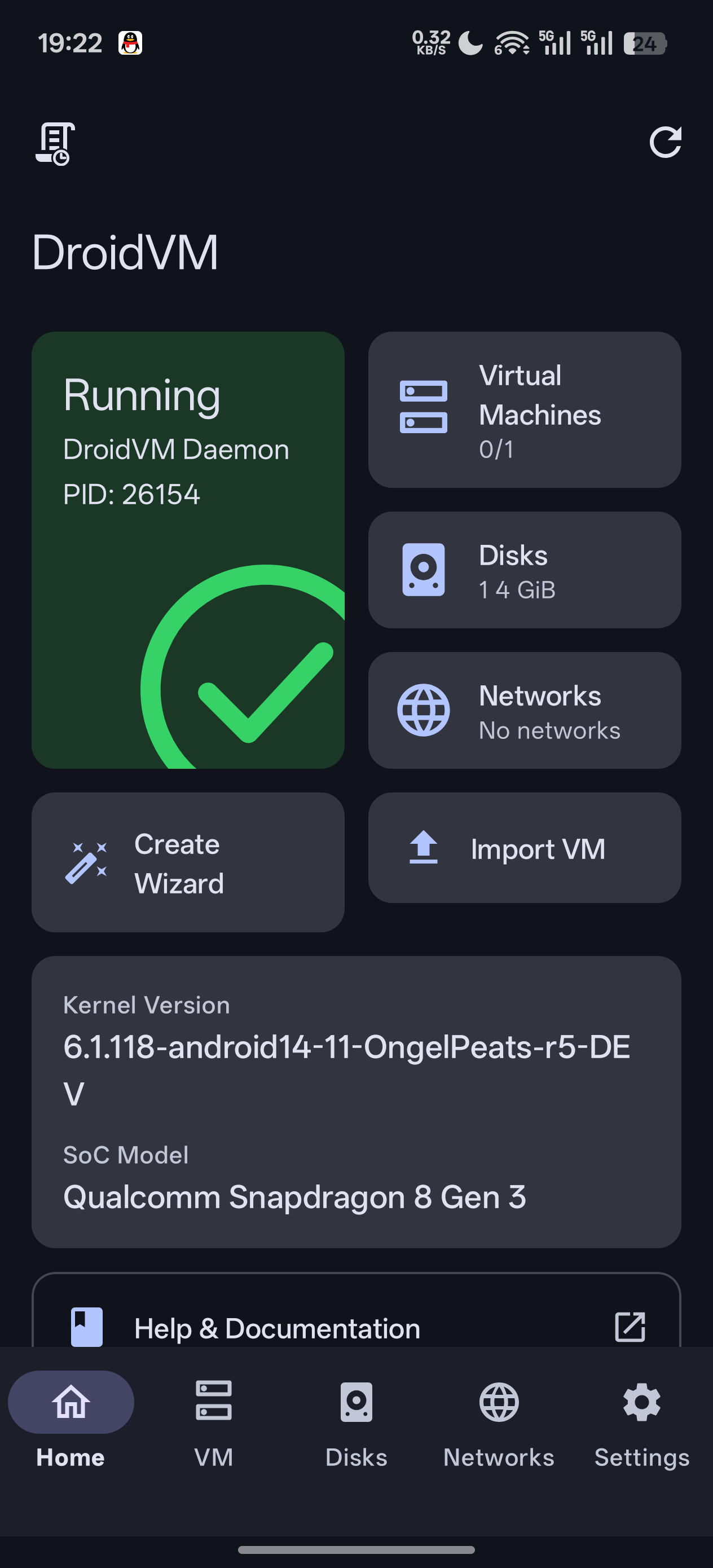
📷 Screenshot placeholder: App main interface (virtual machine list)
What It Can Do
With DroidVM, you can do the following on your phone:
- Boot a full Linux desktop (such as Ubuntu, Debian, Arch, and other distributions)
- Run Windows on ARM (with modified VirtIO drivers)
- Set up a development / testing environment with a graphical interface
- Use your phone as a portable host with an external screen + Bluetooth keyboard and mouse
Core Features
| Feature | Description |
|---|---|
| Multiple VM Backends | crosvm and QEMU |
| UEFI Boot | Boot Linux or Windows |
| GPU Acceleration | VirGL, GfxStream, and 2D software rendering |
| Multiple Display Methods | Built-in VNC client, native display (Surface passthrough), external screen casting |
| Terminal Console | Full ANSI/xterm emulation (based on the Termux terminal library) |
| Disk Management | raw, qcow2, vhdx, vdi, vmdk; resize / convert / clone / optimize / snapshot |
| Image Acquisition | URL download, distribution image download, LXC image import |
| Virtual Bridge Network | NAT, DHCP, STP, VLAN, IPv4/IPv6, port forwarding |
| Shared Directory | VirtFS (9p / virtiofs) |
| Windows Support | With modified VirtIO drivers |
| Linux Agent | Offline modification of VM passwords and more |
| VM Packages | Export / import .vmpkg to migrate a VM together with its disks |
Interface Layout
The app has five bottom tabs:
| Tab | Contents |
|---|---|
| Home | Daemon status, VM / disk / network overview, VM import, help and feedback, new-version notice, kernel and SoC info |
| VMs | VM list; long-press to edit / export as package / delete |
| Disks | Disk image management |
| Networks | Virtual bridge network management |
| Settings | App settings, backup & restore, about and updates |
📷 Screenshot placeholder: Home tab (daemon status card + overview cards)
The daemon card on the Home tab is tappable: a popup menu lets you start / stop / restart the daemon, and the card colour reflects its running state.
How It Works
DroidVM leverages whichever hypervisor is available on the device (Qualcomm Gunyah, MediaTek GenieZone, or Linux KVM) to provide hardware virtualization. The app uses Root access to start a background daemon (process name droidvmd), which invokes crosvm / QEMU to create and run virtual machines; the front-end app handles configuration management, display, and interaction.
┌────────────────────────────────────────────┐
│            DroidVM App (Front-end UI)        │
│  Config · Display(VNC/Native) · Console · Disk/Net │
└───────────────────┬────────────────────────┘
                    │ IPC
┌───────────────────▼────────────────────────┐
│               daemon (root)                  │
│      crosvm / QEMU  ·  Virtual Bridge  ·  Disk │
└───────────────────┬────────────────────────┘
                    │
┌───────────────────▼────────────────────────┐
│   Gunyah / KVM / GenieZone  Hypervisor       │
└─────────────────────────────────────────────┘
Next Steps
- First, check whether your device meets the Requirements
- Then install or build DroidVM
- After completing the Initial Setup, you can move on to the Quick Start