
Network Management
DroidVM provides a virtual Bridge Network with support for NAT, DHCP, STP, VLAN, and IPv4/IPv6. Switch to the Network tab on the main screen to manage it.
A VM connects by selecting an already-configured network in the VM network tab.
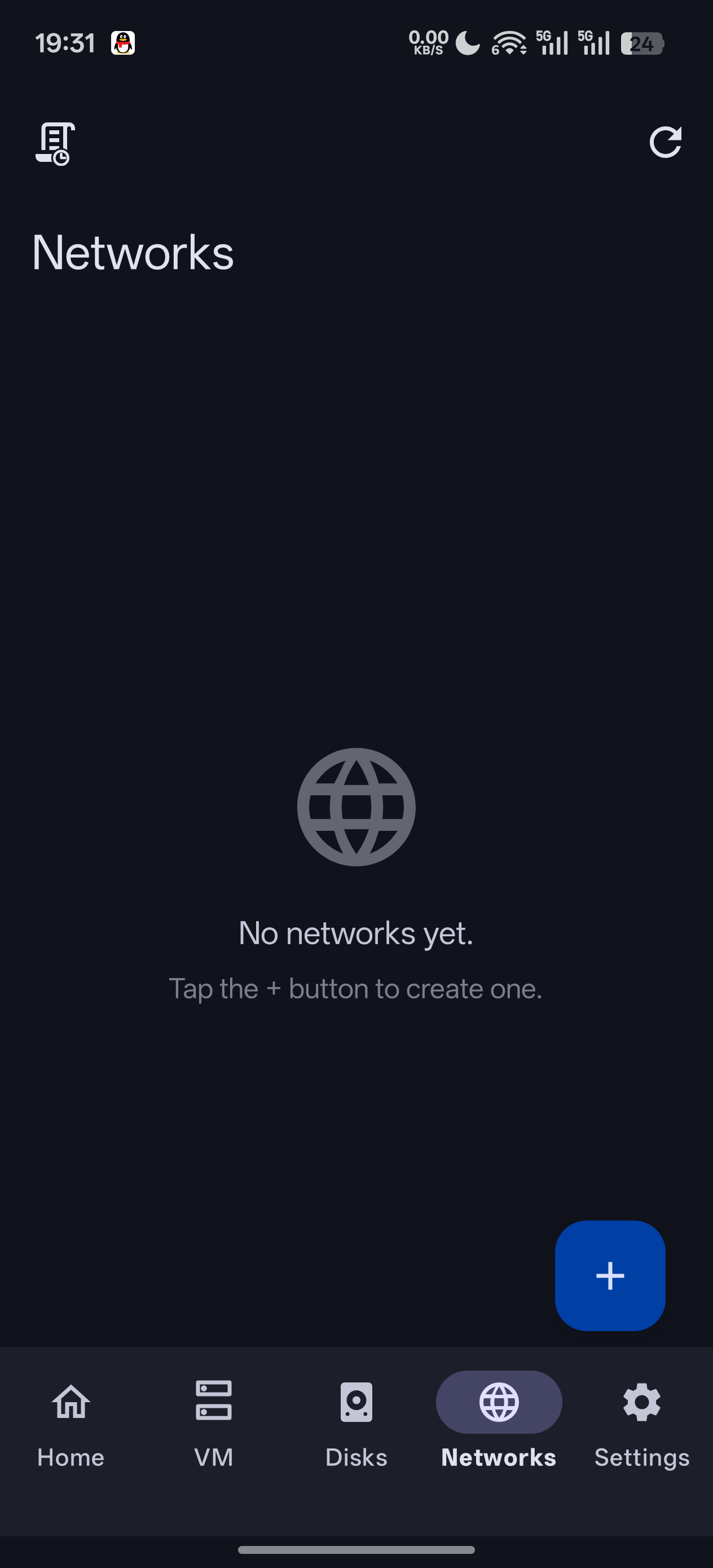
📷 Screenshot placeholder: network list
Creating / Editing a Network
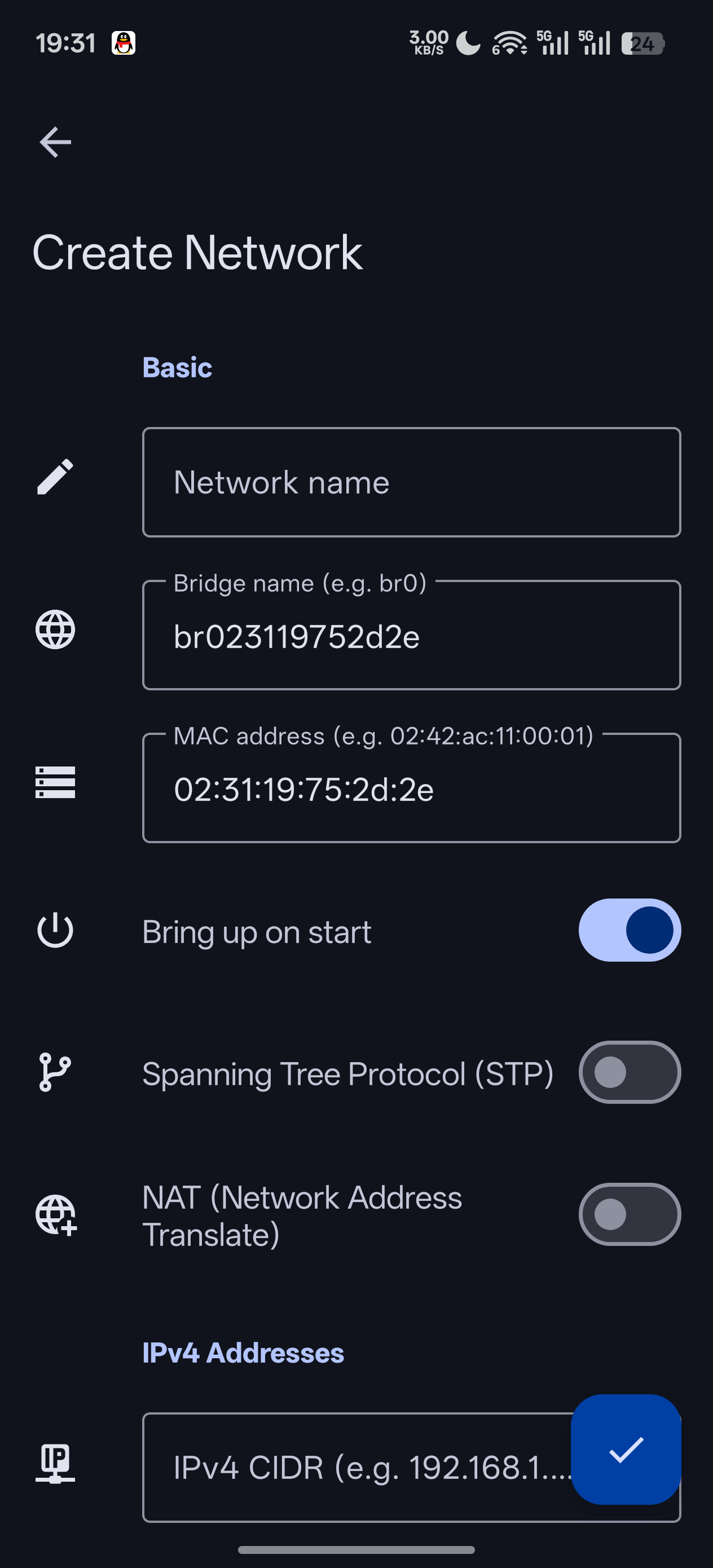
Tap create or edit to enter the network configuration.
Cannot edit while running
A running network cannot be edited (the UI shows a banner and disables saving). Please stop the VMs using this network first.
Common Settings
| Field | Meaning | Options |
|---|---|---|
| Name | Network name, unique | Required |
| Bridge name | Linux interface name, ≤12 chars, starts with a letter | Auto-suggests br+8 digits |
| Auto-enable on startup | Bring up the network automatically on boot | Toggle |
| STP | Spanning Tree Protocol | Toggle |
| Bridge type | Linux bridge (default) / gVisor bridge | |
| External connection mode | Layer-2 Bridging (L2) / Layer-3 Routing (L3, default) |
How to choose the bridge type
- Linux bridge: good performance, supports more features such as secondary networks, but some capabilities like IPv6 SNAT are limited
- gVisor bridge: a user-space network stack supporting IPv6 SNAT and IPv6 Port Forwarding; L3 mode only
L2 · Layer-2 Bridging Mode
The VM connects directly to the upstream Layer-2 network and resides on the same subnet as the host.
| Field | Meaning |
|---|---|
| Uplink interface | Wi-Fi / Ethernet / tethering / a specific physical device |
| Pseudo-bridge | Forced on and locked for uplinks that cannot be bridged directly (e.g. Wi-Fi); optional for bridgeable uplinks |
L3 · Layer-3 Routing Mode (Recommended)
The host acts as a router and the VM goes out via NAT. This is the most commonly used mode with the best compatibility.
| Field | Meaning |
|---|---|
| Bridge MAC | Can be randomly generated |
VLAN Cards
In L3 mode, subnets are defined via VLAN cards. Each VLAN card can be configured with:
| Field | Meaning |
|---|---|
| VLAN ID | 0 = Untagged domain |
| Primary IPv4 network CIDR | e.g. 10.181.7.1/24 (a non-conflicting 192.168.N.1/24 is auto-picked at creation) |
| IPv4 SNAT | IPv4 outbound NAT (Port Forwarding depends on this) |
| DHCPv4 | Once enabled, set the address pool start/end offset (default 128 / 192) |
| IPv6 source | Static CIDR / DHCP-PD (gVisor does not support PD) |
| Primary IPv6 network CIDR | e.g. fd00:7::1/64 (when static) |
| PD uplink interface / DUID | In DHCP-PD mode (leave DUID blank to auto-generate) |
| IPv6 SNAT | Available only with the gVisor bridge |
| DHCPv6 | Once enabled, set the address pool start/end offset |
| SLAAC | ::/64 stateless address autoconfiguration |
| Secondary IPv4/IPv6 networks | Comma-separated (Linux bridge only) |
| DNS servers | Comma-separated (leave blank to follow the system DNS) |
📷 Screenshot placeholder: L3 network / VLAN card configuration
Port Forwarding
Port Forwarding is set per VM in the VM's NIC configuration (under DHCPv4 / DHCPv6 static assignment).
Format: one per line, [protocol] host-port:guest-port
22:22            # tcp+udp, host 22 → guest 22
tcp 8080:80      # tcp only
8000-9000:8000-9000   # port range
Conditions to take effect
- Port Forwarding requires SNAT to be enabled on the owning network
- IPv6 Port Forwarding additionally requires the gVisor bridge
Save Validation and Network Info
On save, the following are validated: name / bridge name uniqueness, valid CIDR, and non-overlapping subnets (including across networks). After saving, if the daemon already knows this network, the update is pushed in sync.
The Network Info page shows the network's run state and network-tool logs, useful for troubleshooting connectivity issues.
📷 Screenshot placeholder: network info / status