
Managing and Controlling Virtual Machines
In the list under the Virtual Machines tab, tap any virtual machine to enter its detail page, where you can view information and control it.
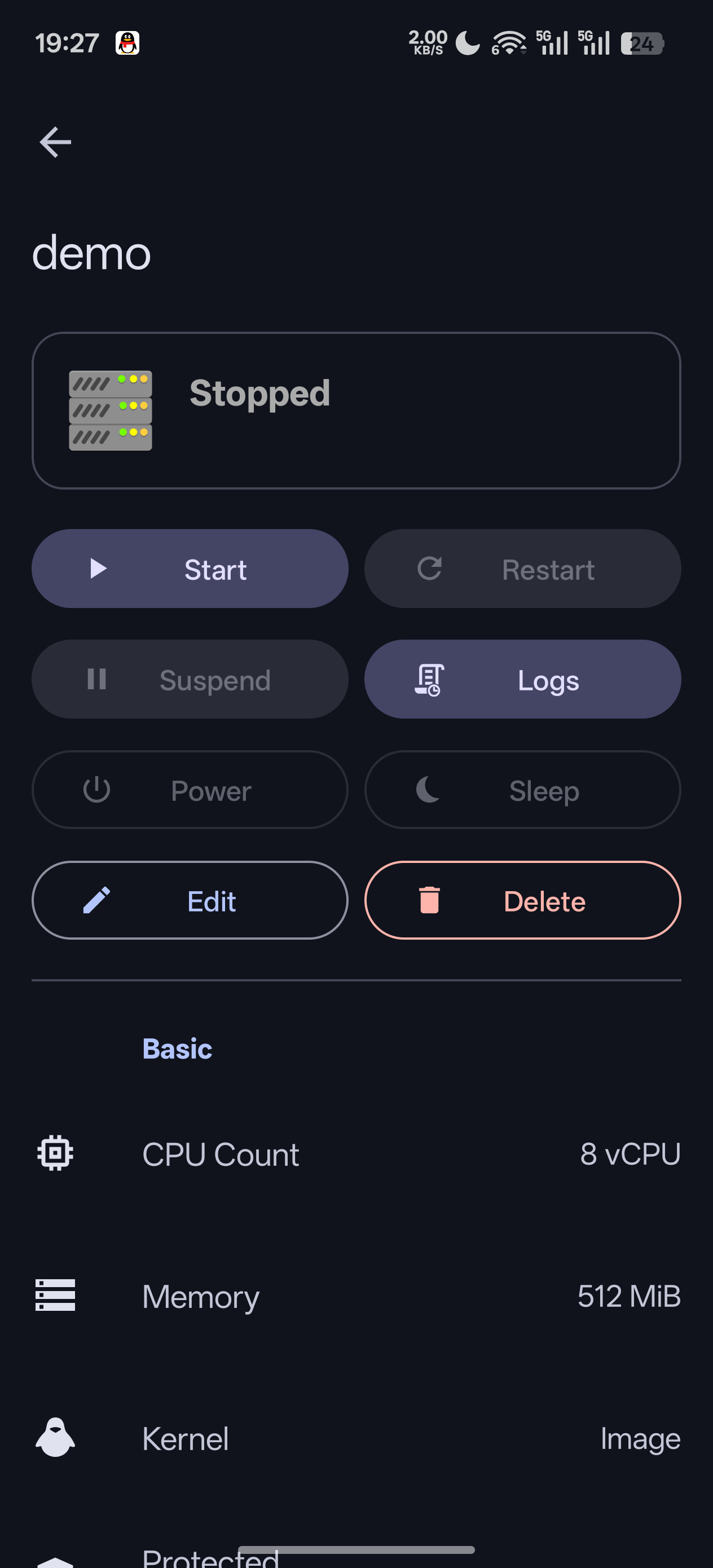
📷 Screenshot placeholder: VM detail page (info + control buttons)
Detail Page Information
The detail page shows key information about the virtual machine:
- CPU count, memory size
- Boot method summary, protection mode
- Number of disks, enabled options (Balloon / Sandbox, etc.)
- Creation time
- List of active port forwards
VM States
| State | Description |
|---|---|
| STOPPED | Stopped |
| RUNNING | Running |
| SUSPENDED | Suspended |
Control buttons are automatically enabled / disabled based on the current state.
Control Operations
| Operation | Description | Available State |
|---|---|---|
| Start | Start the virtual machine | Stopped |
| Stop | Stop the virtual machine | Running / Suspended |
| Restart | Reboot the virtual machine (requires confirmation) | Running |
| Suspend | Pause the virtual machine (preserves memory state) | Running |
| Resume | Resume from the suspended state | Suspended |
| Console | Enter the serial Terminal Console | Running |
| Display | Open the graphical display | Running |
| Logs | View past boot logs | Stopped |
| Power Button | Send a power button event (ACPI) | Running / Suspended |
| Sleep Button | Send a sleep button event | Running / Suspended |
| Edit | Modify the configuration | Stopped |
| Delete | Delete the virtual machine | Stopped |
Graceful Shutdown
A direct "Stop" is equivalent to pulling the power. If the guest system supports ACPI, it is recommended to use the Power Button first to trigger the guest's internal graceful shutdown process, avoiding filesystem corruption.
Compressed qcow2 Disks
If a virtual machine mounts a compressed qcow2 disk, DroidVM will first convert it to an uncompressed format before booting (a crosvm compatibility requirement), so startup may be slightly delayed. You can run "Optimize" on the disk in advance under Disk Management.
Auto-Start on Boot
Enable Auto-start on boot in the "Boot" tab of Create/Edit VM, and the virtual machine will be brought up automatically after the device restarts.
Deleting a Virtual Machine
In the stopped state, the virtual machine can be deleted from the detail page. Deleting a virtual machine does not automatically delete its disk image files; disks must be deleted separately under Disk Management.
Shortcuts in the List
Long-press a VM in the VMs tab to open a menu:
📷 Screenshot placeholder: The long-press menu on the VM list (Edit / Export as package / Delete)
| Menu item | Description |
|---|---|
| Edit | Open the configuration screen |
| Export as package | Pack it into a .vmpkg; see Export & Import VM Packages |
| Delete | Delete the virtual machine |
Backup and Migration
Two options, pick what you need:
| Method | Contents | Best for |
|---|---|---|
| Export config (Settings) | All VM, network, and disk configuration, as JSON | Backing up settings only; tiny file |
| Export as package (long-press a VM) | One VM's config + disk images | Switching devices or sharing; ready to run |